
VPhoneGaGa Stuck at 99% or 100%? Try 7 Virtual Android Startup Fixes
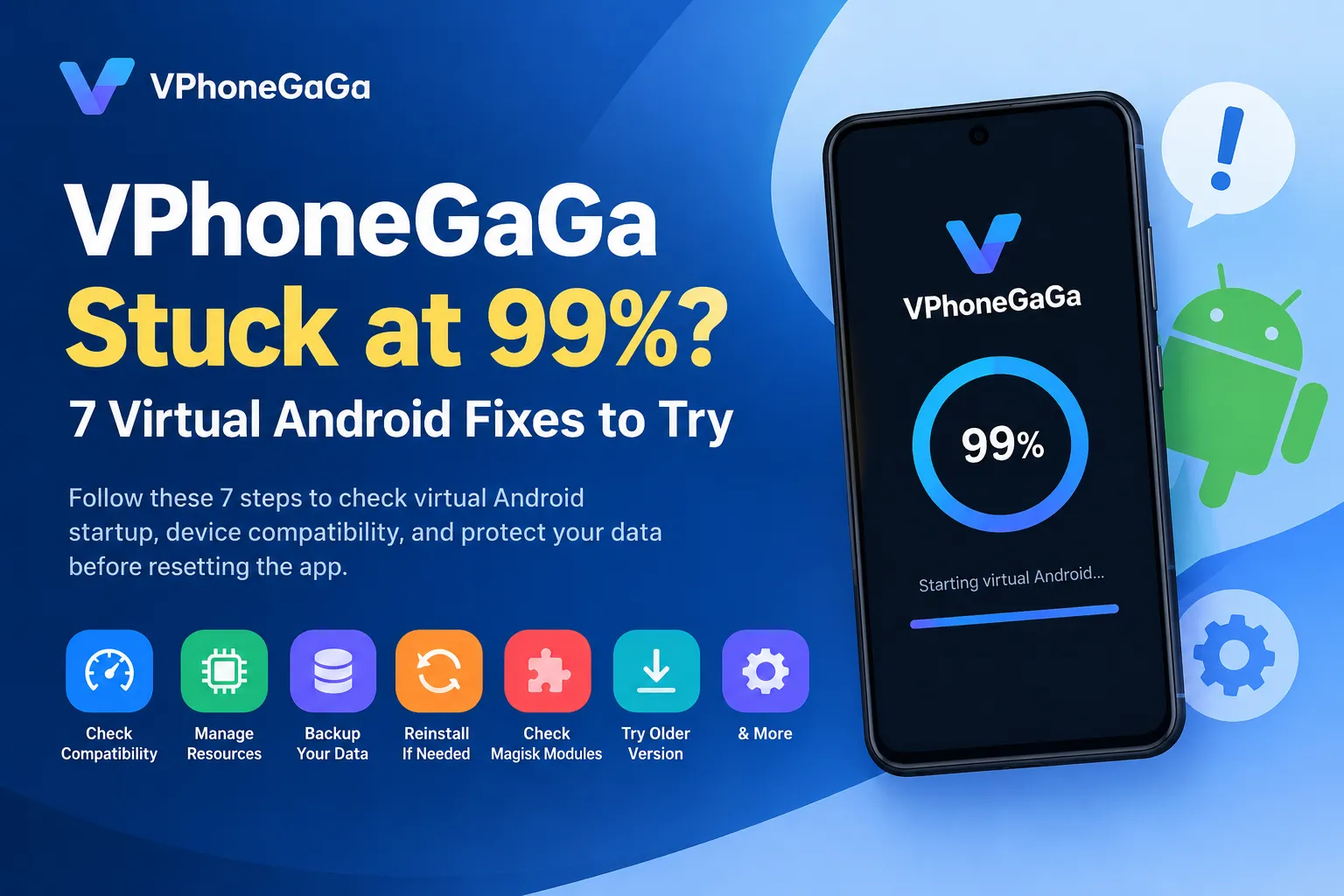
Is VPhoneGaGa stuck at 99% or 100% when you start your virtual Android system? The loading screen may stop progressing, leaving you unable to open your virtual environment. This can be frustrating, especially if you need access to apps, games, or files inside it.
The percentage alone does not reveal the cause. The problem could involve a temporary startup failure, limited device resources, an incompatible configuration, or an issue with the installed app version. If you want to learn more about the app, visit the VPhoneGaGa homepage to explore its features and virtual Android environment.
Follow these seven troubleshooting steps in order. Start with simple checks before changing system settings or reinstalling anything. Most importantly, protect your virtual Android data before trying a reset.
Why Does VPhoneGaGa Get Stuck at 99% or 100%?
VPhoneGaGa runs a virtual Android environment on your existing phone. Starting that environment involves more than opening the main app. The virtual system must also initialize its components and configuration.
If startup stops near completion, the displayed percentage does not necessarily identify the failed component. Different phones and virtual system configurations can experience similar symptoms for different reasons.
The following steps help you narrow down the problem without assuming that one fix works for everyone.
1. Wait Briefly and Restart the App
If VPhoneGaGa has just reached 99% or 100%, wait a few minutes before taking action. Startup time can vary depending on your phone, available resources, and virtual system configuration.
If the percentage remains unchanged and the environment does not open, try restarting the app.
If the virtual system still freezes at the same point, continue to the next step. Repeatedly reopening the app is unlikely to help if an underlying compatibility or configuration problem remains.
2. Restart Your Phone and Close Heavy Apps
Running a virtual Android environment requires resources from your main Android system. If your phone is already handling several demanding apps, performance may suffer.
Try the following:
Remember that RAM and storage are different. Available RAM helps running processes operate, while free storage provides room for files and app operations. Freeing storage alone will not solve every startup problem.
If VPhoneGaGa remains stuck after a restart, investigate compatibility rather than repeatedly clearing space without a clear reason.
3. Check Android Version and Virtual System Compatibility
Your phone may run the VPhoneGaGa app but still have trouble with a particular virtual Android configuration.
Check your phone’s Android version, processor architecture, and the requirements of your installed VPhoneGaGa release. Also review the requirements for the virtual system you are trying to start.
Architecture compatibility can matter. For example, an app or virtual system designed for a particular 32-bit or 64-bit environment may not work in every configuration. However, having a 64-bit phone does not automatically guarantee compatibility with every virtual system.
If you recently changed the virtual Android configuration, consider returning to a previously working configuration if the app provides a safe way to do so. Do not delete your existing instance just to test another option.
4. Review Recent Updates and Configuration Changes
Think about when the loading problem first appeared. Did it start after an app update, a virtual system change, or the installation of a modification?
If the timing matches a recent change, investigate that change first.
For example, users who modify virtual environments with root tools or other system components may encounter configuration-specific issues. If you recently enabled such a feature, review its compatibility with your current setup.
Only reverse a change when you understand what it does and can do so safely. Avoid installing random patches or changing several settings at once. Otherwise, you may introduce more problems and make the original cause harder to identify.
If nothing changed before the issue started, move on to checking the app installation.
5. Verify Your VPhoneGaGa Version and APK
An outdated, modified, or improperly installed APK may behave differently from the expected release. Check the version installed on your phone and determine whether the startup problem began after an update or installation.
Review the release information and Android requirements from a source you trust. Confirm that the package is intended for your device and that you are not mixing incompatible builds. If you are comparing different editions, check the VPhoneGaGa Gold APK page for its available features and version details.
If you installed a modified APK, remember that its behavior may differ from the original package. Installation signatures and package differences can also matter when changing versions.
Do not download several APKs from unknown websites and install them one after another. If you decide to change versions, first check whether the new version supports your existing setup and whether your virtual data can be preserved.
6. Check Language Settings Only When Relevant
Some community discussions describe startup or crash problems that appeared to improve after changing language settings. These are anecdotal reports, not verified solutions for every VPhoneGaGa loading freeze.
Consider this check only if the issue began after changing your phone’s language or the language settings used by the virtual environment.
If you can safely access the relevant setting, note the original value before testing a supported alternative. Restart VPhoneGaGa and check whether the behavior changes.
If there is no improvement, restore your preferred setting. There is no reason to change language settings when they have no apparent connection to the problem.
7. Protect Your Data Before Resetting or Reinstalling
If none of the earlier steps help, the issue may require further investigation of the app installation or virtual environment.
Before taking a destructive action, check whether VPhoneGaGa provides a backup or export option for your version. If the environment is accessible, back up important files and confirm that the backup is saved somewhere you can reach.
Only consider resetting the virtual environment or reinstalling the app after reviewing the relevant instructions and protecting your data.
If there is no improvement, restore your preferred setting. There is no reason to change language settings when they have no apparent connection to the problem.
Frequently Asked Questions
Final Thoughts
When VPhoneGaGa gets stuck at 99% or 100%, start with a brief wait, an app restart, and a check of your phone’s available resources. Then investigate compatibility, recent changes, and the installed APK.
Avoid treating unverified community suggestions as guaranteed fixes. If the problem continues, record your phone model, Android version, VPhoneGaGa version, virtual system configuration, and the exact point where startup stops. These details can help you find guidance that matches your setup.
Above all, protect your virtual Android data before resetting or reinstalling anything.